
Disclaimer: This guide is for general informational purposes only. Before deleting files or changing settings, make sure your important data is backed up, and follow the official instructions for your device and apps.
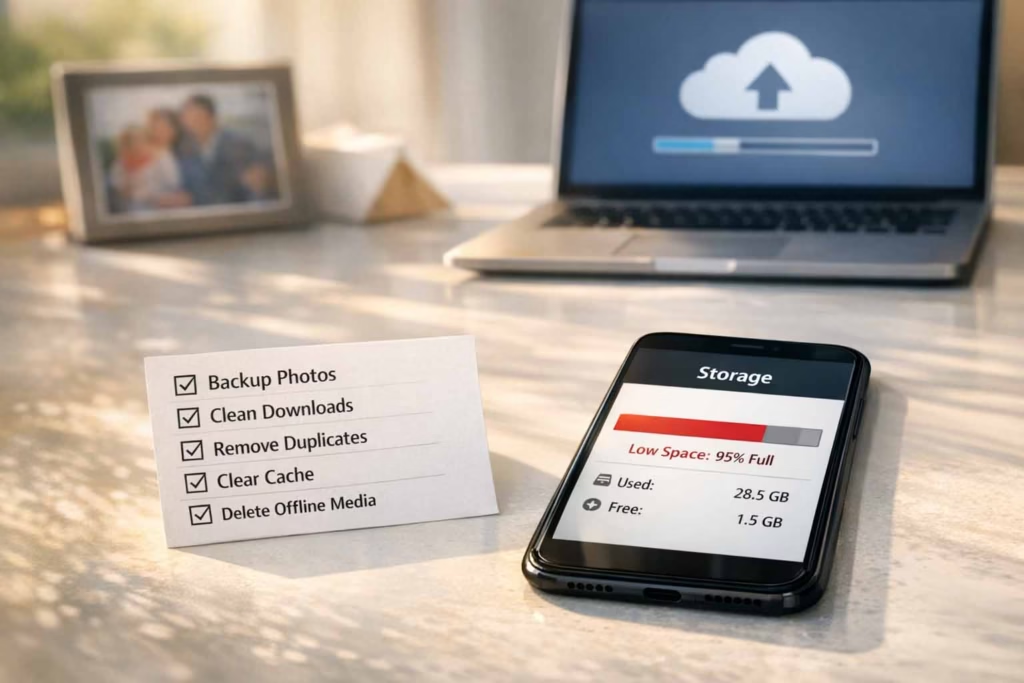
If you have ever seen a storage full warning at the worst possible moment, you are not alone. I wrote this phone storage cleanup guide after cleaning my own device without losing family photos, chat videos, and those “I will need this later” files.
The key is simple, back up what matters first, then remove the space hogs in the right order, so you regain breathing room fast and keep your memories intact.
Here is the roadmap I use, and the same one I recommend to friends in the US, analyze what is actually taking space, protect the irreplaceable stuff, clean the biggest categories safely, then set up simple habits so the problem does not come back.
There is no hacking, no sketchy “cleaner” apps, and no shortcuts that put your photos at risk, just straightforward, privacy first steps that work on real phones.
Phone storage cleanup, the safe order that prevents regret
The biggest mistake people make is starting with random deletes, then hoping they can recover later. I almost did that myself. A couple years ago, I opened my gallery, saw a sea of videos, and started selecting huge chunks to delete.
Then I paused because I could not answer a basic question, did I actually have a backup I could trust? That pause saved me.
What finally worked for me was treating this like a small project, not a panic reaction. I do it in four steps, and it consistently clears meaningful space without the “what did I just erase” feeling.
The 4 step method I use every time (and why it works)
- Identify the biggest categories first. I start with a quick scan using a storage analyzer tool so I am not guessing. Guessing leads to wasted time and the wrong deletes.
- Protect memories before cleanup. I confirm cloud photo backup is actually complete, then I make a second copy somewhere local, because one backup is not a backup, it is a hope.
- Remove safely, not emotionally. I make intentional choices around secure deletion vs archiving depending on whether the file is sentimental, important, or truly disposable.
- Prevent the rebound. After the cleanup, I put a simple storage maintenance routine in place so I am not repeating this every month.
The reason this works is that it gives you confidence before you remove anything. When you know your important photos and videos are protected, you can be more decisive with the clutter.
What “safe to delete” really means on modern phones
“Safe” means two things, first, you are not removing something that breaks how the phone or apps function, and second, you are not removing something you cannot replace.
Modern phones do a lot behind the scenes, so internal memory management matters more than it used to. I keep a simple backup and restore checklist and I always do a local backup before deleting anything sentimental. That one habit prevents regret more than any “one tap cleaner” ever will.
Find what is using the most space (before you touch anything)
Most people try to clean by instinct, photos, apps, or downloads, but that can miss the real culprit. The best cleanups start with one short audit.
Quick answers to “how to see what is using the most space”
If you are asking how to see what is using the most space, the answer is to check the storage breakdown screen first, then sort by size inside the categories that dominate. I personally spend two minutes here because it saves me 30 minutes later.
iOS and iPhone steps
On iOS and an iPhone, the storage screen shows a category breakdown, plus recommendations. I use it to find the top two categories and the biggest offenders inside them before I delete anything.
Android steps for Samsung Galaxy and Google Pixel
On Android, a Samsung Galaxy and Google Pixel usually offer storage analysis built in, plus file suggestions. I look for the heaviest apps and the largest media files first, then I decide what is truly safe to remove.
Your top 5 usual culprits
In real life, the same five categories show up repeatedly, photos and videos, messaging media, apps, downloads, and system. This is where you can save time by targeting the top two instead of nibbling at everything.
I also check manage system data early because it can surprise people. Next, I look for memory hog apps, then I review app data management for a few offenders. Finally, I make sure to organize files by size so I am removing the biggest items first, not the easiest ones.

Protect your memories first (photos, videos, and the stuff you cannot replace)
This is the part most guides rush, and it is the part that matters most. I treat it like moving house, pack the valuables first, then declutter.
Photo backup options that work well in the US
There are two reliable approaches, cloud plus local copy, or local first plus cloud. I prefer cloud plus local because it is easier to maintain long term.
Cloud options to consider (and what I personally check)
I have used a mix of services over the years. The specific provider matters less than the verification step. For example, with iCloud and iCloud Drive, the backup can look “on” while uploads are still pending.
With Google Photos and Google Drive, storage settings and quality options can change what is actually kept. OneDrive, Dropbox, and Amazon Photos can be excellent too, especially if you already use them for work or family sharing.
Three questions I force myself to answer before deleting anything:
- can I delete photos after they are backed up
- steps to keep full resolution images in cloud backups
- how to check backup status before deleting anything
If I cannot confirm those three, I do not delete. That is my line in the sand.
Backup verification checklist (the boring step that saves you)
What I verify in practice
- I open the cloud library on a second device or web view and confirm recent photos appear.
- I spot check a few videos, not just photos, because videos fail more often.
- I confirm the phone is on Wi-Fi and power long enough to finish uploads.
Local backup options, simple and fast
For a local copy, I use Microsoft Windows or macOS depending on what I have nearby. On macOS, Finder makes it straightforward. Older setups may still use iTunes. The goal is not a perfect archive, it is a second copy you can access if cloud sync gets messy.
When friends ask the best way to export photos and videos into one folder, I tell them to export by date range or by album, then keep the folder structure intact. It reduces chaos later.
Preserve albums, dates, and favorites
This is where people accidentally “save everything” but lose the organization that made it meaningful. Two questions matter here:
- how to keep albums and dates after moving photos
- how to keep favorites and starred items intact
My personal trick is to do a small test export first, then reimport or view it on another device to confirm the dates and grouping behave as expected before moving the whole library.
Photos and videos, the biggest space wins with the lowest risk
Once I know my backups are real, I can clean aggressively without fear. Photos and videos usually produce the biggest immediate results.
Remove duplicates and near duplicates safely
I always start here because duplicates waste space and add clutter. The goal is to remove duplicate photos without accidentally deleting a unique shot.
If you are wondering how to find and remove duplicates safely, the safest approach is to review duplicates in batches, starting with the largest files, and always keep the best resolution version when two are nearly identical.
Handle large video files without deleting the moments
Videos are emotional, and that makes cleanup harder. I approach them like this, keep the meaningful ones, reduce size for “nice to have,” delete the forgettable ones.
The practical steps are to manage large video files, then decide whether to compress videos for space or to optimize photo size for future captures so your camera does not keep producing huge files.
A question that helps people decide is, when to use compression vs keeping originals. If it is a once in a lifetime moment, keep the original. If it is a casual clip you want to remember, compression is usually fine.
Clean the clutter media categories
This is where quick wins live. I clear out old junk first, then move to “maybe later.”
- delete old screenshots that were only useful for a minute
- remove redundant documents that are already stored elsewhere
- delete temporary files that apps leave behind
These three categories are low risk, high reward, and they make the rest of the cleanup feel lighter.
Camera settings that prevent future bloat
After a cleanup, I take one minute to adjust camera settings for smaller files if the phone offers it. It is not about making your photos worse, it is about choosing a reasonable balance so you are not forced into emergency cleanup every few weeks.
Apps, cache, and hidden storage that quietly grows
Apps are sneaky. Even if you do not use them, they can hold data, cached videos, and offline content.
The safe way to remove apps without losing your accounts
I start by identifying apps I have not touched in months. On some devices you can offload unused apps, which keeps data while removing the app itself. Otherwise, I uninstall rarely used apps after confirming I can sign back in.
The key question is how to avoid losing logins when removing apps. My rule is simple, if the app is tied to finances, work, or authentication, I confirm I can log in from another device first, or I confirm the recovery method is set up.
Clear cache the right way (and when not to)
Cache is helpful until it is not. For a few heavy apps, I will clear app cache. For browsers, I sometimes clear browser data when storage is tight, but I do it with care.
If you are asking what is safe to remove without breaking apps, think of cache as safe, and app data as risky. For browsers, use the most conservative option first, and follow how to clear browser history and site data safely to avoid losing important sessions. Also, if storage bloat keeps returning, it helps to understand how to clear temporary files created by apps so you are removing junk, not settings.
Find and control auto saving behavior
One of the biggest silent issues is social apps saving every photo and video you see. If you want to stop future bloat, you need to know how to stop apps from saving media automatically and change that setting. It is one of the highest leverage steps in this entire guide.
App downloads and updates that pile up
Apps can quietly download big updates and keep old files. On iPhone, check the App Store settings. On Android, review the Google Play Store download behavior so updates do not surprise you at the worst time.
Messages, attachments, and social apps, where “one video” becomes 6 GB
This category is the reason many people feel confused. A single group chat can hold years of photos, memes, and videos.
Where messaging apps save pictures and videos
A lot of people ask where messaging apps save pictures and videos, and the answer depends on the app and settings. Some apps store media inside the app, some store it in the phone’s gallery, and some do both. This is why message attachments removal needs a deliberate approach, you want to remove copies, not the only version.
iMessage and iOS tips
With iMessage, I remove the biggest attachments first. I keep the conversation intact, but clear the heavy files that I already saved elsewhere.
WhatsApp and Android tips
With WhatsApp, I review storage by chat and target the top few threads. I do not delete everything, I focus on the biggest media items that no longer matter.
Remove heavy chat media without losing the conversation
A practical question is how to remove videos from group chats without nuking your chat history. The safest approach is to remove media inside the chat storage manager so the text remains and you are only removing attachments.
Social apps that cache a lot
Some apps are famous for caching a lot of video and images, and it adds up quickly. If storage keeps disappearing, check apps like Facebook Messenger, Instagram, TikTok, and Snapchat.
In my experience, media caching patterns often overlap with audio caching too, so I watch out for clear music cache behavior in apps that mix video and audio content.
Voice notes and hidden audio
People forget how much space voice clips can take, especially if you are in active chats. I do a quick pass to clean voice notes and I keep only what matters. If you are unsure, ask yourself, how to save voice memos to a safe place, then move them to a cloud folder or local archive before you delete.
Downloads, documents, email attachments, and the folders people forget
This is where quiet clutter lives, the things you saved once and never looked at again.
Downloads folder cleanup in 10 minutes
The biggest improvement here is structure. I do a simple downloads folder organization pass, keep what matters, delete the rest, and rename a few key files so I can find them later. If you want it fast, focus on how to clean the downloads folder quickly by sorting by size and deleting the biggest items you do not recognize.
Email attachments removal (and why it works)
Email can hold years of attachments, especially if you use your phone for work, school, or receipts. A targeted email attachment removal cleanup can save surprising space.
If you need a practical method, start with how to remove large email attachments on mobile by sorting attachments by size and removing duplicates that you already stored elsewhere.
Use a file manager to spot the giants
When I want a clear view of what is actually large, I use a file manager app. On Android, Files by Google is a common option, and it helps surface large files and categories without hunting manually.
Streaming and offline content, fast wins with zero memory risk
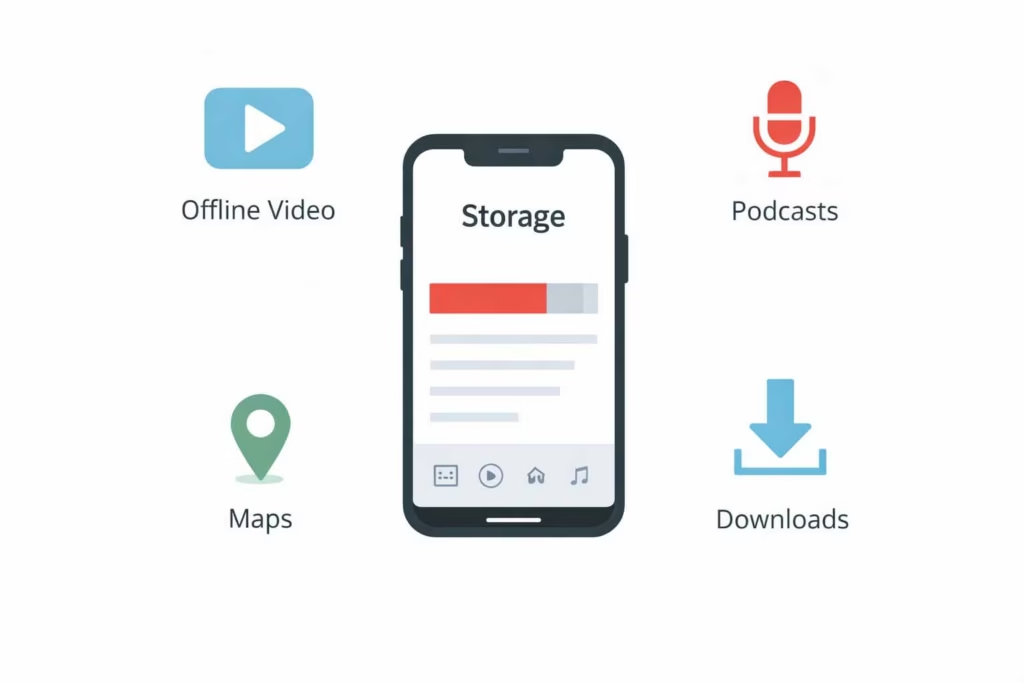
Offline entertainment is convenient, and it can quietly eat storage.
Remove offline downloads without losing progress
This is a safe category because you can re-download later. The main actions are to remove offline downloads and tighten up streaming download management so the app does not keep collecting content.
If you are worried about losing your place, follow how to delete offline movies without losing progress. On Netflix, progress is usually tied to your account, not the file sitting on your phone.
Podcasts and music that quietly fill storage
Podcasts can auto download dozens of episodes without you noticing. I routinely delete unused podcasts and trim old downloads that I know I will not replay. If you use Spotify, check offline settings and download limits, it is one of the easiest places to reclaim space without touching photos.
Offline maps and other helpful caches
Maps are great until they expand. If you rarely travel without service, remove offline maps and re-download only for trips. It is easy space with low risk.
System data, why it keeps growing, and what you can actually do
System storage is the category that causes the most frustration because you cannot always see what is inside it.
Why system data keeps growing over time
If you are asking why system data keeps growing over time, it is usually a combination of logs, caches, update files, and app leftovers that the phone does not clean aggressively. It is normal for it to expand, but it should not take over the device.
What to do if storage stays full after deleting files
If you deleted a lot and still feel stuck, you are not imagining it. Here is the practical answer to what to do if storage stays full after deleting files, restart the phone, confirm items are actually removed from “recently deleted,” then re-check the storage breakdown.
This is also when that original storage full warning tends to reappear, because the phone is still indexing and reorganizing.
Safe resets and last resort steps
If things still do not improve, I consider a clean rebuild, but only after confirming backups. I treat this like a last resort because it costs time. If you ever delete the wrong thing, it helps to know how to recover deleted files if you make a mistake, so you can act quickly and increase the odds of recovery.
Move files off your phone, the safest keep everything approach
If you want a lot of space without hard decisions, moving files off the phone is the simplest path.
Transfer photos to a computer (simple methods)
I like this approach for people who want control. To transfer photos to computer, you can use a cable, wireless transfer, or cloud sync. If you want the most reliable method, focus on how to move files to a laptop with a cable, because it avoids Wi-Fi hiccups and keeps the transfer steady.
External drives, when I recommend them (and what to buy)
For families or creators, an external drive can be a game changer. I often move files to external drive when someone has tons of videos and wants to keep originals. If you want speed and reliability, learn how to use an external SSD for media storage, it is faster than older flash drives and more durable for repeated transfers.
Archive vs delete, choose the right outcome
When something matters but you do not need it on your phone, the right move is to archive photos safely.
A quick mental model is captured in this question, what is the difference between deleting and archiving. Deleting removes access and can be permanent. Archiving keeps it, but stores it somewhere smarter.
Automation that keeps storage from filling up again (US friendly settings)
The best cleanup is the one you do once. Automation is how you get there.
Automatic media backup that does not burn your data plan
A solid automatic media backup setup means you are not dependent on memory or discipline. The practical step many people miss is how to enable automatic backup on Wi-Fi only, so you do not chew through mobile data while commuting or traveling.
Sync settings that prevent duplicates and confusion
Sync issues create duplicates and chaos. I review sync settings for cloud services so the phone does not keep re-downloading media, and so photos are not scattered across multiple places with inconsistent dates.
Set a monthly check reminder (and what to review)
One small habit prevents most emergencies, a recurring reminder. If you want the exact question to act on, it is how to set a monthly storage check reminder. When it pops up, check top categories, downloads, large videos, and chat media.
Carrier considerations in the United States (brief, practical)
Most people in the US bounce between Wi-Fi and cellular. Whether someone uses Verizon, AT&T, or T-Mobile, the practical advice stays the same, keep backups on Wi-Fi when possible, and avoid auto downloading huge media on cellular if storage and data limits are tight.
Quick action checklist, 30 minutes to meaningful space
This is the condensed version I share when someone is stressed and wants results today.
10 minute triage
- Check storage breakdown and identify top two categories.
- Clear “recently deleted” for photos and files.
- Remove the biggest low risk items first, old screenshots, large downloads, obvious duplicates.
20 minute safe cleanup
Once backups are verified, it becomes much easier to make decisions. This is where most people free up space on smartphone quickly by focusing on chat attachments, large videos, and unused offline content. Do not bounce between categories, finish one category before moving to the next, it reduces mistakes.
Common mistakes I learned the hard way (and how you can avoid them)
I have made almost every mistake once, which is why I now stick to a predictable process.
The 5 mistakes (and the fix)
- Cleaning before confirming backups, fix it by verifying on a second device.
- Deleting randomly instead of by size, fix it by sorting and targeting the biggest files first.
- Clearing the wrong type of data in apps, fix it by avoiding “app data” unless you are sure.
- Ignoring chat media, fix it by reviewing the top few chats for heavy attachments.
- Trusting sketchy cleaner apps, fix it by using built in tools and reputable services.
A bonus mistake is forgetting the basics after cleanup. If you do not change a few settings, the phone will fill up again.
When to stop and back up again
If you feel rushed, or you see unexpected gaps in your photo library, stop and re-check backups. The cleanup is only “successful” if the memories are still there tomorrow.
FAQs
1) Where should someone start if their phone storage is almost full?
Start with the storage breakdown screen and identify the top two categories by size. Then protect sentimental photos and videos with a verified backup. After that, target the safest high impact categories, offline downloads, duplicates, large videos, and chat attachments.
The common failure mode is doing small deletes everywhere. A focused cleanup clears more space and reduces accidental loss.
2) How can someone confirm their photo backup is truly complete before deleting anything?
Use a second device or a web view to check the library, then spot check recent items and a few longer videos. Confirm the phone finished uploading on Wi-Fi and power, and verify that deleted items are not the only copy. If possible, keep a second copy on a computer or external drive for extra safety.
3) What is usually safe to remove without breaking important apps?
Cache and temporary files are generally safe, especially for social and streaming apps. Be cautious with “app data” because it can include offline files, settings, and logins.
For banking or authentication apps, confirm recovery methods are set up before making changes. When in doubt, remove the app only if you are sure you can sign back in.
4) How can someone keep photo quality high while still saving storage?
First, store originals in a reliable backup location, then decide whether the phone needs the originals locally. For everyday photos, consider settings that reduce file size, and use compression for casual videos that are not once in a lifetime moments.
Keeping originals in the archive while keeping lighter copies on the phone is often the best balance.
5) Why do messaging apps take so much space, and how can someone reduce it safely?
Messaging apps can store media inside the app, in the photo library, or both. The safe approach is to use the app’s storage manager to remove large attachments while keeping conversations intact. Focus on big videos and forwarded files first. Also disable auto saving and auto downloading where possible.
6) How can someone clean up social apps without losing drafts or important content?
Start by trimming cached data and offline items, not account data. Save drafts or important posts first if the app stores them locally. If an app is rarely used, removing it and reinstalling later can be cleaner than trying to micromanage caches. The big win is changing auto download behavior so the app stops rebuilding storage instantly.
7) What should someone do when “system” storage looks huge and will not shrink?
Restart the phone, clear recently deleted items, and re-check after indexing settles. Remove large apps and reinstall only what is needed. If system storage remains unusually large, a backup plus reset can fix persistent bloat, but it should be treated as a last resort because it takes time and requires careful backup verification.
8) What files should US users be careful about deleting from downloads and documents?
Anything tied to taxes, medical records, insurance, travel, or work should be saved to a trusted backup location first, then deleted from the phone if needed. If unsure, move questionable files into a “review later” folder and revisit once the phone is stable. This avoids the stress of needing a document months later.
9) What is the safest way to move photos to a computer and keep organization intact?
Use a direct transfer method, export in date ranges or albums, and keep folder structure consistent. After transferring, verify a sample of files, check dates, and confirm videos play correctly. Only then should files be removed from the phone. Keeping a second backup, even temporarily, reduces risk.
10) If someone deletes the wrong thing, what is the first thing they should do?
Stop using the phone heavily, check the “recently deleted” areas in photos and files, and restore immediately if possible. If the item was synced to a cloud service, check the service’s trash or recovery area. The longer you wait and the more you use the phone, the harder recovery can become.
Transparency note and privacy reminders
This guide intentionally avoids aggressive “cleaner” apps because many request broad access and create unnecessary risk. Built in storage tools, reputable backup services, and simple habits are safer.
The goal is not to delete your life off your phone, it is to keep what matters, remove what does not, and set things up so storage stays stable.
Author Bio
Jordan Miller is a tech writer who focuses on practical, privacy friendly smartphone tips and everyday digital organization. Published by Ahmed Saeed.