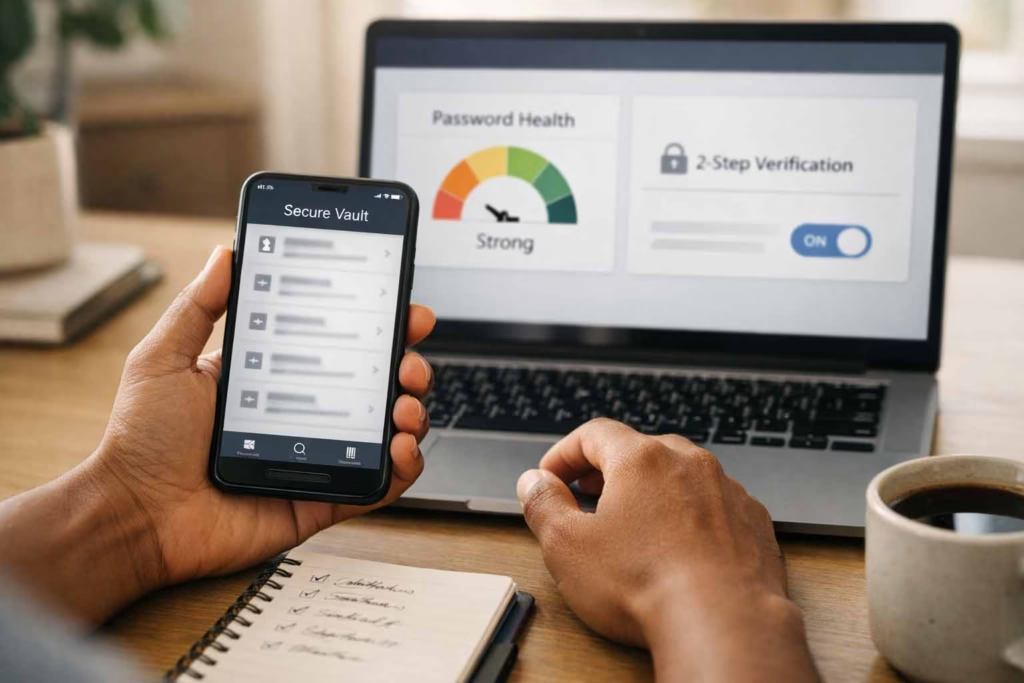
If there is one security habit that consistently pays off for everyday Americans, it is setting up a password manager correctly, once, then letting it quietly protect the hundreds of logins that pile up over time.
This password manager setup guide is designed to get a reader from “I have passwords scattered everywhere” to “my accounts are organized, protected, and easy to use” in about 15 minutes, without turning security into a hobby.
I will keep this practical and calm. No scare tactics, no complicated theory. Just the exact steps, plus the small choices that make a big difference long term, based on what has worked for me after helping friends and family clean up messy logins.
Quick disclaimer and who this is for
Security disclaimer
This article is educational guidance, not a guarantee. Every password manager and every device ecosystem behaves a bit differently, so readers should follow the security policies and documentation of the tool they choose.
If a reader is under a workplace security policy, they should follow their company IT rules, especially around shared accounts, exports, and approved apps.
Who benefits most (USA)
This is for people in the US who:
- Have lots of logins across shopping, banking, work apps, and streaming
- Work remotely or travel often, using multiple devices
- Share a few accounts with family members and want to stop texting passwords
- Run a small business or freelance, and need cleaner access control
What changed for me after switching was not “more paranoia,” it was less stress. I stopped doing the mental gymnastics of remembering variations, I stopped reusing passwords “just this once,” and I stopped losing time to account recovery loops. The best part was convenience, but only after the setup was done properly.
The 15 minute promise, what “safe logins” actually means
What is being set up in plain language
A good setup is not just “installing an app.” The goal is to set up a secure password vault that becomes the single place where logins live, protected by one strong master secret and modern protections.
It also means a user will install and configure a credential manager across the devices they actually use, so saving and filling works where it matters (phone, laptop, tablet), not only in one browser.
Two concepts appear in marketing that are worth translating into normal language:
- zero-knowledge encryption meaning: the provider is designed so it cannot read a user’s vault contents, because encryption happens in a way that keeps the decryption key with the user, not with the service.
- end-to-end encrypted sync explained: when vault data syncs between devices, it is protected in transit and storage so that only the user’s devices can decrypt it.
The “15 minute promise” is realistic because the first setup is mostly choosing defaults and turning on the right locks. The longer work, like replacing weak passwords, can be phased in afterward, but the foundation can be done quickly.
My 3 non negotiables
These are the three rules that made the biggest difference for me, and they are the rules I push when helping someone else set up their vault.
- “Start by protecting the email account tied to your vault.”
- “Fix reused passwords first because they are the biggest risk.”
- Recovery planning has to exist before it is needed, not after.
Those rules sound simple, but they prevent the most common failure modes: account takeover through email, domino effects from reused passwords, and lockouts caused by missing recovery options.
Tools that commonly come up (examples, not endorsements)
There are many reputable tools. The point is not to pick “the one true app,” it is to pick one that fits the reader’s device mix and comfort level, then set it up correctly.
Popular examples include 1Password, Bitwarden, Dashlane, Keeper Security, NordPass, Proton Pass, LastPass, RoboForm, Enpass, Zoho Vault. Built in options also exist, like Apple Keychain and Google Password Manager.
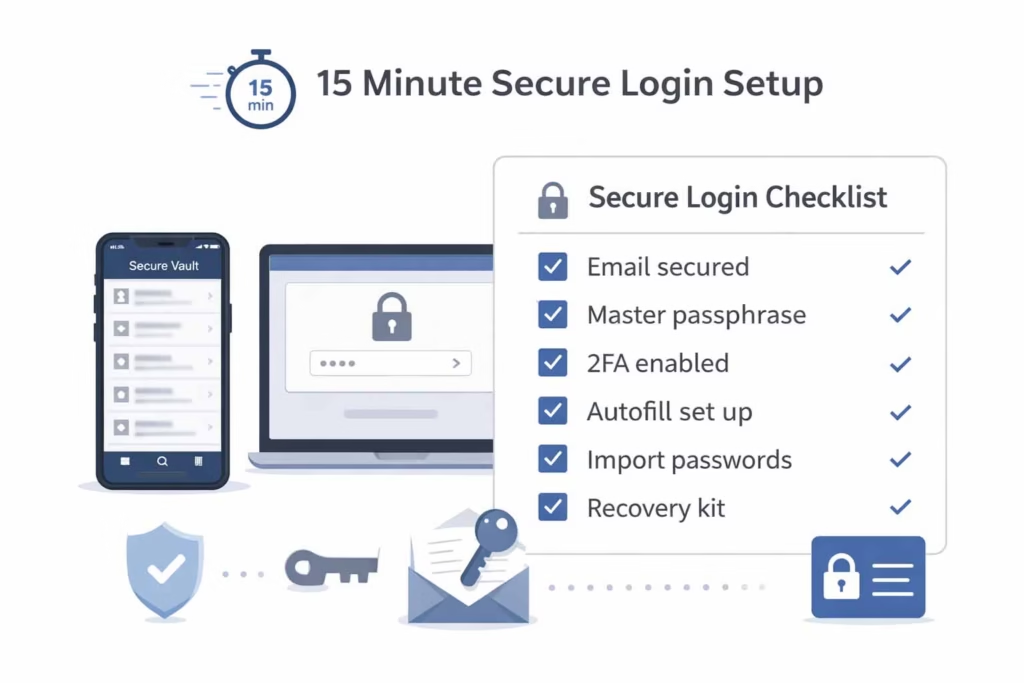
Password manager setup guide, the exact 15 minute checklist (printable)
Below is a minute by minute plan. A reader can literally set a timer and follow it.
Minute 0 to 2, choose the platform and sign in safely
This is the part most people rush, and it is where mistakes start. The reader should decide what devices matter most. For many Americans it is a phone plus a laptop.
- On iPhone and iPad, the ecosystem is iOS, with unlock options like Touch ID.
- On phones and tablets outside Apple, it is Android.
- On Windows PCs, the convenience layer often involves Windows Hello.
Before anything else, focus on securing your email account first, because email is the reset button for almost every service.
Two reminders that belong right at the start:
- “Start by protecting the email account tied to your vault.”
- “Keep the app updated to reduce security bugs.”
Practical way to do this in two minutes:
- Make sure the email password is not reused.
- Confirm the recovery email and phone are current.
- Turn on the email provider’s two factor method (app based is usually better than SMS when available).
Minute 2 to 5, create the vault and master passphrase
This is where first-time vault onboarding steps matter. The reader should slow down for three minutes and do it right.
Core goal: apply master passphrase best practices and create a long memorable passphrase. A passphrase should be long, unique, and something the user can type reliably.
One line to treat as a hard rule:
- “Pick a master passphrase that is long, unique, and memorable.”
A simple approach I have seen work well is to build a phrase from unrelated words plus a personal structure the user remembers, then add length rather than complexity. Length does the heavy lifting.
What I personally check before I proceed
This is a small routine I do that prevents “setup regret” later:
- I confirm the recovery email is accessible right now, not “probably.”
- I check that my phone and laptop have screen locks enabled.
- I eliminate distractions for five minutes, because one typo during setup can cause later confusion.
Minute 5 to 7, lock down access with 2FA
Now the user should enable two-step verification for vault access. This is one of the highest leverage steps.
Use an authenticator method when possible. Common options include Microsoft Authenticator, Google Authenticator, Authy, or a hardware key like YubiKey. Many services use TOTP, which is the rotating code standard behind many authenticator apps.
Two reminders that matter here:
- “Turn on two-step verification before you import any logins.”
- “Use a trusted-device prompt to block unknown sign-ins.”
Why phishing resistance matters
Two factor authentication is good, but it is not all equal. A lot of account takeovers today are driven by phishing, not brute force. That is why phishing-resistant authentication methods are becoming normal, especially with passkeys.
Here are the terms readers will see:
- Passkeys are the user facing concept.
- WebAuthn is the web standard.
- FIDO2 is the modern authentication framework.
- The FIDO Alliance is the industry group behind the standardization.
The practical takeaway: when a service offers Passkeys, it is worth considering, because it reduces the risk of entering secrets into fake pages.
Minute 7 to 10, enable convenience without losing security
This is where people either fall in love with a manager or abandon it. Convenience has to work, but it must not weaken the setup.
Focus on these items:
- biometric unlock configuration
- desktop and mobile autofill setup
- autofill safety controls
- vault auto-lock settings
Four lines that I recommend placing as mental guardrails:
- “Require biometrics or a device PIN before autofill.”
- “Set the vault to auto-lock quickly when you are away.”
- “Confirm the site address before you allow autofill.”
- “Disable autofill on suspicious pages or unexpected prompts.”
My autofill rules
These are the rules I personally use because they keep autofill helpful without being reckless:
- I enable autofill only on my own devices, not shared computers.
- I keep auto lock aggressive, especially on laptops.
- I never autofill on a page that I reached through a weird link, a random QR code, or an urgent looking email.
- I treat any unexpected login prompt as suspicious until proven otherwise.
Minute 10 to 12, import accounts the safe way
Now the user can bring in existing logins. This part is often messy, so the goal is “good enough,” not perfection.
Two common routes:
- import saved logins from a browser
- import passwords from a CSV file
A safety line that belongs here, exactly as written:
- “Avoid importing passwords from untrusted files or unknown sources.”
After import, it is important to review what came in:
- “Review the password health dashboard after your first import.”
Post import cleanup steps
This is where the vault becomes usable.
- Remove obvious duplicates.
- Merge entries that belong to the same service.
- Standardize names and URLs.
This line sounds boring, but it is a major quality of life upgrade:
- “Choose a clear naming system for entries so you can find them fast.”
Minute 12 to 15, harden everything and set recovery
This final chunk sets the vault up for success.
- Set the generator and start improving weak logins:
- Configure password generator settings
- Aim for unique passwords for every account
- Start to rotate weak or reused passwords
- Turn on monitoring and audits:
- Use a password health report checklist
- Enable compromised password alerts
- Enable breach monitoring notifications
- Plan recovery and backups:
- Do emergency access setup
- Create an account recovery plan
- store recovery codes securely
- export an encrypted vault backup
Five lines to place directly into the workflow:
- “Use the built-in generator for every new account you create.”
- “Check alerts for weak, duplicated, or compromised credentials.”
- “Store recovery codes in the vault, not in your inbox.”
- “Create an emergency kit and store it in a safe place offline.”
- “Test account recovery once, before you ever need it.”
Picking the right tool for US readers, what actually matters
Security model basics without jargon
Most reputable tools use strong encryption. Two terms that appear often are AES-256 and Argon2. The details matter less than the practical result: the vault should be encrypted strongly, and the master passphrase should never be stored in plain form.
When evaluating risk, I think in three buckets:
- Device risk, lost phone, stolen laptop, shared computers
- Phishing risk, fake login pages and lookalike domains
- Recovery risk, what happens when the user loses access
A good setup reduces all three.
Convenience features that are worth it
Two features matter a lot in real life:
- multi-device credential sync, so the same vault works on phone and computer
- passwordless sign-in options, because they can reduce credential theft risk
And this line belongs as a “use it when it makes sense” reminder:
- “Use passwordless sign-in when a site offers it as a safer option.”
A simple comparison rubric
Must have
- Strong encryption
- Two step verification support
- Cross device sync that works
- Ability to export an encrypted vault backup
Nice to have
- Passkeys support
- Easy, safe sharing
- Emergency access
Avoid
- Unclear recovery
- Weak audit tools
- Confusing sharing permissions
US guidance touchpoints (not legal advice)
For readers who want credible references, three names come up often in US security conversations:
- NIST SP 800-63B (identity guidelines)
- CISA (public cybersecurity guidance)
- Federal Trade Commission (FTC) (consumer protection and scams)
These are helpful as a compass, but the setup steps above remain the practical foundation.
My “secure first” setup order
Why email and banking come first
This is the order I use because it closes the biggest holes early:
- Email account
- Banking and payment accounts
- Apple or Google account
- Everything else
One line that belongs in every setup discussion:
- “Use longer passwords for high-value accounts like banking.”
What I do if I find reused passwords
I do not try to fix everything in one sitting. I pick the highest risk accounts and start there.
- “Fix reused passwords first because they are the biggest risk.”
The trick that keeps it manageable is to choose five accounts that would hurt the most if compromised, then replace those first.
Device trust and session hygiene
Three practices matter more than most people think:
- trusted device approval
- device loss security checklist
- login audit and cleanup
Two lines that fit here naturally:
- “Sign out of old devices you no longer use.”
- “Lock the vault manually before screen sharing or remote support.”
In my experience, “old devices” are a bigger risk than hackers. People forget an old tablet is still signed in, or they gave a laptop away years ago without checking sessions. Cleaning this up is fast and very effective.
Autofill and browser safety, the part most guides skip
How autofill actually gets abused, and how to block it
Autofill is powerful, which means it can be abused if it fills into the wrong place. The goal is not to fear autofill, it is to gate it properly.
Focus on:
- autofill safety controls
- clipboard timeout security
And apply this line as a simple habit:
- “Limit how long copied passwords stay on your clipboard.”
Browser import and permissions
If the tool uses a browser extension, the reader should:
- Keep extensions minimal
- Install only from official stores
- Remove old password saving extensions once the manager is in place
The security goal is fewer moving parts.
Practical “site address” verification habits
Two lines worth repeating as habits:
- “Confirm the site address before you allow autofill.”
- “Disable autofill on suspicious pages or unexpected prompts.”
A trick I personally use is to navigate to important services through bookmarks or typing the address, not by clicking links in messages. It is boring, but it works.
Sharing without regret, family and teams (USA reality)
Sharing models and when to use them
Sharing is where people get sloppy, because texting a password is easy. A proper manager makes sharing safer when configured well.
What to enable:
- secure password sharing feature
- family shared vault configuration
- team shared vault permissions
Two lines that belong here:
- “Use the secure sharing feature when family members need access.”
- “Do not share credentials over SMS or unsecured chat.”
In the US, family sharing often covers streaming, utilities, smart home logins, and travel accounts. Team sharing often covers social media logins, ad platforms, billing portals, and vendor dashboards.
Role based access in plain terms
Family use cases
- Streaming services
- Utility portals
- Travel bookings
- Kids’ school and activity accounts (when appropriate)
Small team use cases
- Shared tools, project platforms
- Social accounts
- Billing portals and vendor logins
A “minimum access” mindset helps. Share only what someone needs, and remove access when it is no longer required.
Recovery planning that does not lock people out
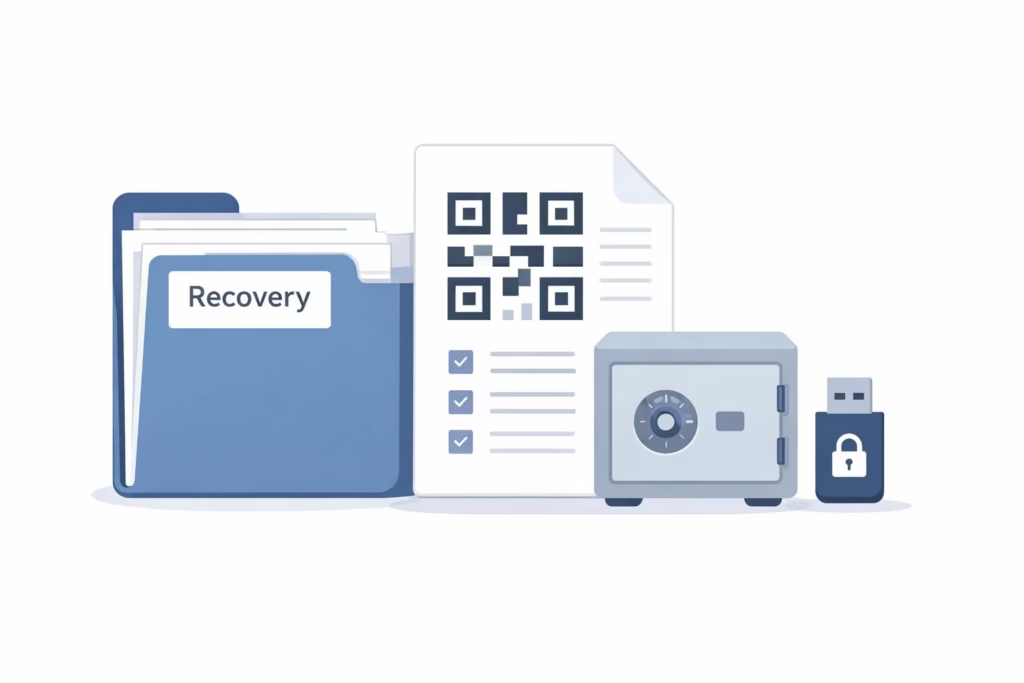
Build an emergency kit that is actually usable
Recovery sounds boring until it becomes urgent. The reader should make recovery part of setup, not a future chore.
These items matter:
- store recovery codes securely
- account recovery plan
- emergency access setup
Two lines to implement literally:
- “Create an emergency kit and store it in a safe place offline.”
- “Test account recovery once, before you ever need it.”
My personal approach is to keep recovery codes in the vault, plus a separate offline copy for the vault itself. That way, a single device loss does not become a full identity crisis.
Backups and exports, safe and simple
A good tool should allow the user to export an encrypted vault backup. This should be done carefully, because exports are sensitive.
Where I store it
I prefer a layered approach:
- One encrypted backup stored offline (not in email)
- One stored in a secure physical location (a safe, or a secure file storage method)
- A clear note for a trusted person if emergency access is required
This is not about paranoia. It is about avoiding account lockout when travel, device loss, or life events happen.
Ongoing maintenance, 10 minutes a month
Audit routine
Maintenance is what keeps a vault from turning into a junk drawer.
Use:
- password health report checklist
- login audit and cleanup
And implement this habit:
- “Run a monthly audit to replace weak logins.”
A simple 10 minute monthly routine:
- Check for reused passwords, replace the top five
- Remove old logins the user no longer needs
- Confirm high value accounts have 2FA
- Confirm recovery info is still accurate
Alerts and breach monitoring, what to do when a notification hits
Monitoring features help when they are configured and taken seriously:
- compromised password alerts
- breach monitoring notifications
Two lines that map directly to action:
- “Enable login alerts so you notice unusual activity quickly.”
- “Check alerts for weak, duplicated, or compromised credentials.”
My rule is simple: if an alert hits on email, banking, or a primary shopping account, I rotate the password immediately and review sessions.
Updates and device lifecycle
This line belongs here as a standing policy:
- “Keep the app updated to reduce security bugs.”
Also tie maintenance to device reality:
- If a phone is replaced, the vault should be re verified and old sessions should be reviewed.
- If a laptop is sold or recycled, it should be signed out and removed from trusted devices.
- The device loss security checklist should include changing the master passphrase only when there is strong reason, not as a knee jerk reaction.
Common mistakes I see (and how I avoid them)
Mistake 1, weak master passphrase
People underestimate this step. It should follow master passphrase best practices and aim to create a long memorable passphrase. Short secrets fail. Long passphrases last.
Mistake 2, importing everything before securing access
I have watched people import hundreds of passwords and only then turn on protection. That is backwards.
- “Turn on two-step verification before you import any logins.”
Mistake 3, enabling autofill everywhere
Autofill should be guarded.
- “Require biometrics or a device PIN before autofill.”
Mistake 4, no separation between work and personal
Mixing contexts creates risk and confusion. Use separating work and personal vaults where the tool supports it.
- “Separate personal and work items into different vaults.”
Mistake 5, poor naming and messy vault
A messy vault becomes unused, which defeats the purpose.
- “Choose a clear naming system for entries so you can find them fast.”
Mini playbooks (copy and paste blocks)
Playbook A, “I just installed a manager, now what?”
- Confirm email security and recovery access
- Complete onboarding and create the passphrase
- Turn on two step verification for the vault
- Configure autofill and auto lock
- Import from browser or CSV
- Review the health dashboard, fix the top risks
- Create recovery kit and export an encrypted backup
- Schedule a monthly audit
Playbook B, “I got a breach alert”
- Identify which account is affected
- Change the password using the generator
- Sign out of unknown sessions
- Check if the same password is reused elsewhere, replace those next
- Confirm 2FA is enabled for that account
- Store updated recovery codes properly
- Re run the health check and address the next highest risk
Playbook C, “New device”
- Install the manager from official sources
- Verify the device is protected with PIN or biometrics
- Approve as a trusted device if appropriate
- Configure auto lock and autofill
- Confirm sync is working and run a quick login test
- Remove access from old devices if needed
Security standards and why they show up in real life
Identity and authentication basics
People often see standards as abstract, but they influence the features that show up in apps and websites.
- NIST SP 800-63B shapes how companies think about identity assurance.
- TOTP is the standard behind rotating authenticator codes.
- WebAuthn and FIDO2 are the web era standards that enable Passkeys.
- The FIDO Alliance coordinates industry adoption.
Plain English takeaway: strong authentication is moving away from shared secrets and toward device based verification.
Consumer protection and guidance (USA)
Two names matter because they focus on practical consumer safety:
- CISA, which publishes accessible cybersecurity guidance
- Federal Trade Commission (FTC), which focuses on scams, identity theft, and consumer protection
Practical implications for readers:
- Avoid shady extensions, only install from official stores
- Confirm site addresses
- Be skeptical of urgent login prompts
- Use vault tools to eliminate reuse and reduce phishing success
FAQs
FAQ 1, What is the fastest way to start using a vault on iOS in the US?
The fastest approach is to set up the vault on iOS first, then enable Touch ID (or Face ID if available) for unlock, and turn on autofill so it works inside apps and browsers. In my own setup, I always secure the email account first, then create the master passphrase, then enable two step verification for the vault before importing anything.
Once autofill works on the iPhone, adding the laptop feels much easier because the habit is already there.
FAQ 2, How does someone choose between 1Password, Bitwarden, and Dashlane for everyday use?
The best choice depends on comfort and device mix, not brand hype. In practice, the decision usually comes down to interface preference, sharing needs, and how well it handles audits and alerts.
I recommend checking whether it supports passkeys, secure sharing, emergency access, and a clean health dashboard. If a reader will use it daily, the “feel” matters, because the safest tool is the one the person actually sticks with.
FAQ 3, Is Apple Keychain enough for most Americans, and when is a dedicated tool better?
Apple Keychain can be enough for people who live entirely inside Apple devices and do not need advanced sharing or cross platform workflows. The moment someone uses Windows, Android, or needs clearer audit tools and permission based sharing, a dedicated manager becomes more practical.
In my experience, the turning point is not encryption, it is daily usability across devices and the ability to manage families or teams without copying secrets into messages.
FAQ 4, What is the safest way to import passwords from Chrome or a CSV file?
The safest method is to import from a known source on a trusted device, then delete the export file immediately after the import is confirmed. A reader can either import saved logins from a browser or import passwords from a CSV file, but they should avoid sending the file through email or storing it in an unencrypted folder.
After import, review the dashboard for duplicates and weak passwords, and fix the highest risk accounts first.
FAQ 5, What should someone do first after compromised password alerts show up?
First, do not panic, start with the accounts that matter most. I begin with email and banking, then any account that can reset others. Change the password using the generator, enable 2FA if it is missing, and sign out of unknown sessions.
Next, check whether that password was reused elsewhere. If it was, replace those logins too. Finally, confirm recovery methods are correct and store recovery codes properly.
FAQ 6, Are passkeys really safer than passwords, and how do FIDO2 and WebAuthn fit in?
Passkeys can be safer because they reduce the chance of entering secrets into phishing pages. WebAuthn is the web standard that enables modern authentication flows, and FIDO2 is the framework that supports passwordless authentication.
In practical terms, when a US bank or major service offers passkeys, it can be worth enabling, especially for high value accounts. I still keep a strong password in the vault as a fallback, but passkeys reduce phishing risk.
FAQ 7, How can someone set up emergency access without risking privacy?
Emergency access should be limited, tested, and documented. The safest approach is to choose one trusted person, set up emergency access with a waiting period, and ensure that access can be revoked. I also recommend keeping an offline emergency kit for the vault itself, stored in a secure place.
Test account recovery once, before it is needed, because in a real emergency the goal is clarity, not guessing.
FAQ 8, What are the best master passphrase best practices for someone with a bad memory?
The best method is to choose length and meaning, not random complexity. Create a long memorable passphrase using a phrase structure the person can recall, then add extra words for length instead of special characters for “complexity theater.” Write it down once during setup if necessary, then store that paper securely and destroy it once the person is confident.
In my experience, a longer phrase that can be typed confidently beats a short “complex” string that leads to lockouts.
FAQ 9, How can a family in the US share logins safely for streaming and bills?
A family shared vault configuration is ideal because it avoids texting passwords. The right way is to create a shared vault for common services, then keep personal logins separate. Use secure password sharing features that allow revocation and auditing.
I always tell families not to share credentials over SMS or unsecured chat because those messages get backed up and forwarded. Keep the shared vault small and focused, only what multiple people truly need.
FAQ 10, What is a simple monthly routine to keep a vault secure?
A good monthly routine is short and repeatable. Run the password health report checklist, address the worst items first (reused, weak, compromised), and do a quick login audit and cleanup by removing logins that are no longer needed.
Confirm 2FA is enabled for email and banking. Check breach alerts, then update the app on all devices. Ten minutes a month keeps the system healthy, and it prevents the vault from turning into a cluttered archive.
Conclusion, the 15 minute setup recap
Summary checklist
- secure email first
- passphrase created and tested
- 2FA enabled for vault
- autofill configured with safety controls
- import safely, then clean up names and duplicates
- fix reused passwords, starting with email and banking
- backups and recovery set, including emergency kit
- monthly audits scheduled
Final reassurance
When I see people quit on password managers, it is rarely because the concept is bad. It is because the first setup was rushed, autofill felt weird, or recovery was never handled. Once the vault is configured well, it stops feeling like “security work” and starts feeling like a quiet upgrade to daily life.
The reader does not need perfection in one day. They just need a clean foundation, then a steady habit of improving the riskiest logins over time.
Author Bio
Written by Jordan Miles, a privacy and cybersecurity writer focused on practical account safety for everyday users in the United States. Published by Ahmed Saeed.